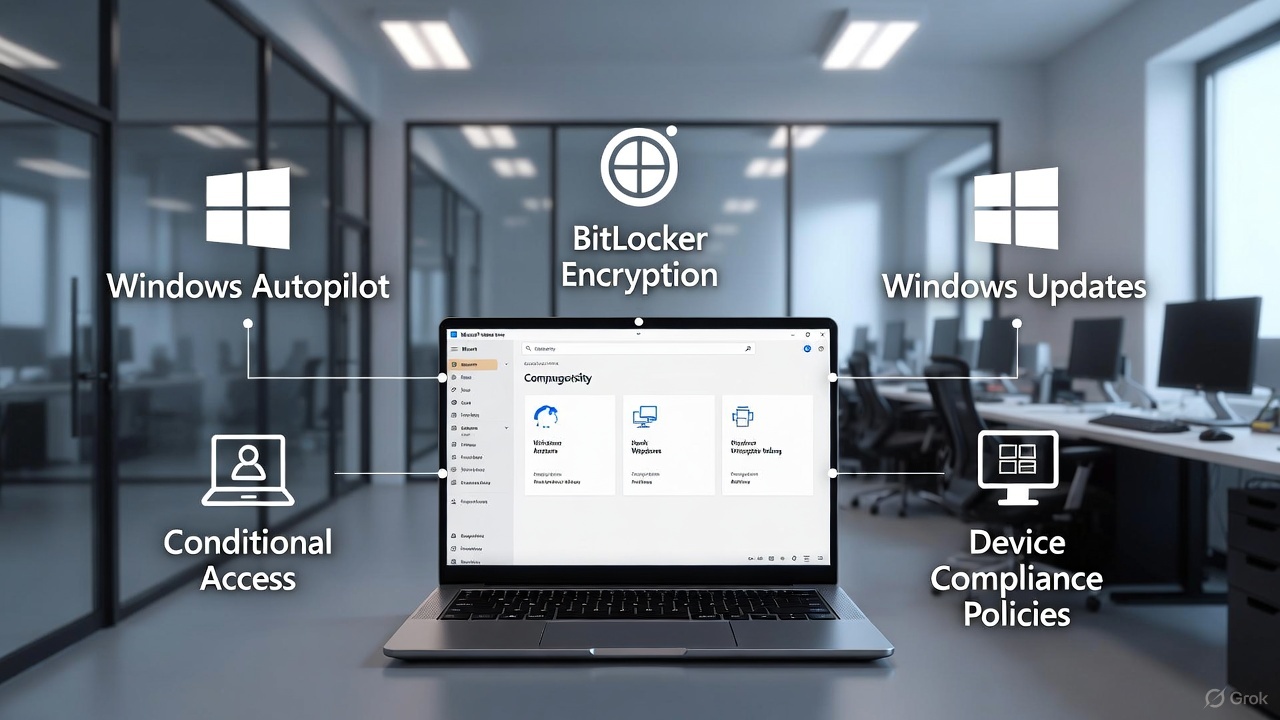
At US 365 Cloud Consulting, we specialize in helping businesses optimize their cloud environments with tools like Microsoft Intune. This blog post addresses common questions on key Intune features, providing clear explanations and step-by-step guidance. Whether you’re an IT admin or a managed service provider, these insights can streamline your device management processes.
How do I set up Windows Autopilot in Microsoft Intune?
Windows Autopilot is a cloud-based deployment service that automates the setup of new Windows devices, transforming them into business-ready states without custom imaging. It simplifies joining devices to Microsoft Entra ID, enrolling them in Intune, and applying policies, apps, and settings. This reduces IT effort and enables zero-touch provisioning for end users.To set it up:
- Verify Prerequisites: Ensure devices run a supported Windows version (e.g., Windows 10/11 semi-annual channel). You’ll need a Microsoft Entra ID P1 or P2 subscription for MDM auto-enrollment, along with networking and licensing requirements.
- Register Devices: Obtain hardware hashes from OEMs or extract them from devices, then upload to Intune via the Devices > Enroll devices > Windows Autopilot devices section.
- Create Deployment Profiles: In Intune, go to Devices > Enroll devices > Deployment profiles > Create profile. Configure settings like join type (Entra ID or hybrid), out-of-box experience (OOBE) customizations, and app assignments.
- Assign Profiles: Link profiles to device groups or dynamic rules based on attributes like model or user.
- Deploy Devices: End users power on the device, connect to the network, and sign in. Autopilot handles the rest automatically.
- Monitor and Manage: Use Intune reports to track enrollment status and apply ongoing policies.
Test in a pilot group to ensure smooth rollout.
How do I manage BitLocker encryption with Microsoft Intune?
BitLocker provides full-volume encryption for Windows devices, protecting data against unauthorized access. In Intune, you can enforce BitLocker policies to enable encryption silently or with user interaction, manage recovery keys, and monitor compliance. Recovery keys are stored in Microsoft Entra ID for easy retrieval.
To enable and manage it:
- Check Prerequisites: Devices must run supported Windows editions (e.g., Pro, Enterprise) with TPM 1.2 or later. Assign appropriate Intune roles for key management.
- Create a Policy: In the Intune admin center, go to Endpoint security > Disk encryption > Create policy. Select Windows as the platform and BitLocker as the profile.
- Configure Settings: Set encryption methods (e.g., XTS-AES 256-bit for OS drives), require TPM authentication, and enable recovery options like key backup to Entra ID.
- Enable Silent Encryption (Optional): For automated setup, disable warnings for other disk encryption and configure TPM startup to require TPM only. Ensure devices are Entra ID joined and meet hardware requirements.
- Assign and Deploy: Target device groups, then create the policy.
- Monitor and Recover: View encryption status in Devices > Monitor > Encryption report. Rotate keys via Devices > All devices > [Device] > BitLocker key rotation. Users can access keys through the Company Portal.
Address any third-party encryption conflicts before deployment.
How do I handle Windows update management using Microsoft Intune?
Intune’s Update Rings allow you to control the timing and delivery of Windows quality updates (security fixes) and feature updates (new capabilities). This ensures devices stay secure and up-to-date while minimizing disruptions through deferrals, deadlines, and user experience controls.
To configure it:
- Create an Update Ring Policy: In the Intune admin center, navigate to Devices > Manage devices > Configuration > Create > New policy. Choose Windows 10 and later, then Windows Update rings.
- Set Update Deferrals: Under Update settings, define quality update deferral (0-30 days) and feature update deferral (0-365 days). Enable or block Microsoft product updates and drivers.
- Configure Feature Updates: Set options like upgrading to Windows 11, uninstall periods (2-60 days), and pre-release builds if testing Insider channels.
- Customize User Experience: Specify automatic update behavior (e.g., install during maintenance windows), active hours, restart checks, and options to pause or check for updates. Enable deadline settings for forced installs (2-30 days with grace periods).
- Assign the Policy: Target specific device groups and save.
- Monitor Compliance: Review update status in Devices > Monitor > Update rings reports.
Group devices by rings (e.g., pilot, broad deployment) for phased rollouts.
How do I set up MFA with Conditional Access in Microsoft Intune?
Conditional Access in Microsoft Entra ID (integrated with Intune) enforces MFA based on user, device, and risk factors, enhancing security for Intune-managed devices. This policy requires MFA for all users accessing resources, with options to exclude trusted scenarios.
To set it up:
- Access the Admin Center: Sign in to the Microsoft Entra admin center as a Conditional Access Administrator.
- Create a New Policy: Go to Entra ID > Conditional Access > Policies > New policy.
- Assign Users: Include all users; exclude emergency accounts, directory synchronization accounts, and optionally guests.
- Target Resources: Select all resources (cloud apps).
- Set Grant Controls: Choose Grant access > Require authentication strength > Multifactor authentication strength.
- Enable in Report-Only Mode: Test the policy, review impacts, then switch to On.
- Integrate with Intune: Combine with device compliance policies to require MFA only on non-compliant or unmanaged devices.
Use report-only mode initially to avoid disruptions, make sure to exclude your admin account from the policy when you are testing so you do not lock yourself out. It is a painstaking process to get back into a tenant you lock yourself out of.
How do I configure named locations for Conditional Access in Microsoft Intune?
Named locations in Entra ID define trusted IP ranges or countries for Conditional Access policies, allowing you to bypass MFA or other controls in secure environments. This ties into Intune by improving risk assessments for compliant devices.
To configure them:
- Navigate to Settings: In the Entra admin center, go to Entra ID > Conditional Access > Named locations.
- Create IP-Based Locations: Add a name, enter public IP ranges (CIDR format), and mark as trusted if applicable.
- Create Country-Based Locations: Specify countries/regions, choose IP or GPS determination (requires Authenticator app for GPS).
- Apply in Policies: In a Conditional Access policy, under Conditions > Network, exclude trusted named locations to skip requirements like MFA.
- Link to Compliance: Use Compliant Network locations (via Global Secure Access) to enforce Intune compliance checks within defined networks.
- Monitor and Update: Policies evaluate at sign-in; restore deleted locations within 30 days if needed.
Limit to essential locations for manageability.
How do I set up device compliance policies in Microsoft Intune?
Compliance policies in Intune define rules (e.g., OS version, encryption) that devices must meet to access resources. They integrate with Conditional Access to block non-compliant devices, ensuring security.
To set them up:
- Review Tenant Settings: In Endpoint security > Device compliance > Compliance policy settings, set unassigned devices as Not compliant and define validity periods (default 30 days).
- Create a Policy: Go to Endpoint security > Device compliance > Policies > Create policy. Select the platform (e.g., Windows).
- Define Rules: Configure requirements like minimum OS version, no jailbreaking, and encryption status.
- Set Actions for Noncompliance: Add emails, remote locks, or retirement after delays.
- Assign Groups: Target users or devices.
- Integrate with Conditional Access: In Entra policies, require devices to be marked compliant.
- Monitor Status: Use the Device compliance dashboard for reports.
Deploy platform-specific policies separately.
References
- Windows Autopilot: Windows Autopilot documentation – Microsoft Learn (https://learn.microsoft.com/en-us/autopilot/)
- BitLocker Encryption: Encrypt Windows devices with BitLocker using Intune – Microsoft Learn (https://learn.microsoft.com/en-us/intune/intune-service/protect/encrypt-devices)
- Windows Update Management: Windows Update settings you can manage with Intune Update Ring – Microsoft Learn (https://learn.microsoft.com/en-us/intune/intune-service/protect/windows-update-settings)
- MFA with Conditional Access: Require multifactor authentication for Intune device enrollment – Microsoft Learn (https://learn.microsoft.com/en-us/intune/intune-service/enrollment/multi-factor-authentication)
- Named Locations for Conditional Access: Conditional Access Policy: Using Network Signals – Microsoft Entra ID (https://learn.microsoft.com/en-us/entra/identity/conditional-access/concept-assignment-network)
- Device Compliance Policies: Device compliance policies in Microsoft Intune – Microsoft Learn (https://learn.microsoft.com/en-us/intune/intune-service/protect/device-compliance-get-started)
Leave a Reply